blog.frederique.harmsze.nl my world of work and user experiences

January 31, 2014

Install it and they’ll come? Not if it doesn’t meet their needs

Filed under: Adoption,Governance,SharePoint,Usability — frederique @ 16:40

The other day, I talked to someone about their plans to set up SharePoint 2013 in their company. The reason they wanted SharePoint 2013, was that their SharePoint 2010 environment was not used. They had not investigated why it was a failure. But from what he told me, it sounded like the IT department just built SharePoint and assumed that the users would come. And they didn’t.

Ummm, and what makes you think that installing a new version of SharePoint would make any difference?

The only way your SharePoint implementation is going to be a success is if:

  • Firstly, it meets the users’ needs and
  • Secondly, it gets adopted by them.

These things do not happen by themselves; you have to address some serious questions before you start installing and implementing your SharePoint and before you introduce it to the users. Obvious? Apparently not, as this was a real life example of an IT guy who seemed to think he could build it and they would come…

In this article I focus on five big questions that need to be answered so that you end up with a SharePoint environment that can be useful. In the next article, I will address adoption: how you can then get employees to actually use it.

1. What are the goals?

What are you trying to achieve with your environment? Building and introducing a SharePoint environment is not a goal. It is a means to an end, such as enhancing productivity, innovation and employee satisfaction in your organization.

Go into detail. Don’t just state that your goal is “more productivity, period”. Think about the goals of your organization, and what a tool like SharePoint could do to help you achieve these strategic goals.

And keep your eye on the big picture. Don’t aim for a narrow goal like implementing a standard way of working through SharePoint. I have heard that as a goal, and it sounds like you are forcing a tool on people that is solely dedicated to force a way of working on them. A recipe for disaster. You are trying to enable the employees to collaborate effectively and efficiently? Taking advantage of the best practices and recognisability offered by standardization is a way, if done properly. And yes, SharePoint can help with that.

Try to quantify your goals, although this is usually quite difficult. How much do you think you can save by improving productivity? A percentage of time that is no longer wasted and can be spent on other tasks? How many mistakes were made last year, because employees did not follow the standard way of working, that could be avoided? By how much could the number of service requests be reduced, because the employees can now help themselves? If the goal is more employee engagement: are you going to measure it by means of an employee satisfaction survey before and after and the result should be so many points improvement?

2. For who is it?

This ties in with the goals: who will work with the environment to achieve those goals? And don’t answer “Duh, the employees of our organization”. There are different groups of people in your organization, and these people may find themselves in different situations.

  • Is it for the Information Workers who work on a computer in their daily work?
  • Operational workers, like factory workers, who don’t have a company computer?
  • Sales operatives who are on the road all day and use a mobile device?
  • For corporate and local? And do these people all understand the same language?
  • New employees and veterans? Are they newbies or computer savvy?
  • For all departments or specifically for some departments who will benefit the most?
  • Only employees or also external parties like suppliers and partners?

If it’s all of the above for the environment as a whole, the different groups may well use different parts of the environment to fulfill their different needs. For example, the Information Works work on documents together, the factory workers look up procedures and request a shift change during a break, sales operatives align their schedules and share their findings after meeting with a client, the external parties work with employees in very specific projects.

In any case, it is very important to keep in mind who the users will be. Usually, SharePoint is not just for IT-people and not just for corporate people.

3. So what do you implement?

What should you offer these people to allow them to achieve their goals? It’s not enough to answer “Well, we offer them SharePoint”.

Even if you have decided that you will use only standard, out-of-the box SharePoint and don’t want any custom development, you still need to think:

  • What functionality are you going to take out of that standard SharePoint box?
    A portal for company news and information to make sure people are up to speed on the latest developments and official policies? Team sites for collaborating in teams? Document management functionality? Project sites to manage projects? Workflows to streamline processes? Integration with Office? Discussion boards and feeds to share ideas? Incorporating Yammer? Commenting and liking to stimulate feedback? Dynamic, search-based overviews that pull information from different sites?
  • How are you going to configure it so that it is handy for the user?
    Do you need separate sections with special security? Do you tie it all together with shared navigation or do team sites, for example, stand alone? Which elements do you put on the pages? With what views to focus on the most relevant items? Based on which content types equipped with which templates and information policies? And using which metadata to allow for clear structure and pertinent search results?
  • What will it look like?
    If it looks awful, it is a lot more difficult to convince people to spend time in the environment. Do you style SharePoint in alignment with your organisation’s style? Or another style? Can every site owner pick his or her own theme or should it be consistent across the entire environment? Do you create a rich look & feel for communication pages and a clean one for pages where users do their heavy duty work without getting distracted?

4. And are you checking with the stakeholders?

If you are an IT guy or gel, you can try to answer these questions by yourself. But don’t. You are doing this for other people in the organisation, so involve them to increase your chances of ending up with something they’ll like:

  • Are the goals aligned?
    The goals for your SharePoint environment should follow from the goals of your organisation. Does management agree with the goals and audiences you formulated?
  • Did you ask the different groups of users what they think of the old system and what they need?
    What do they hate and love in the previous SharePoint implementation or the other systems that you think of replacing with SharePoint? Did you do a survey, a focus group, interviews? Or at least ask around informally, if it’s a small-scale operation? Did you check the available analytics, to see which pages are visited?
  • Are you asking the different stakeholders what they think of your ideas along the way?
    Do you solicit feedback from users about the functionality you propose? Do you test the usability of the configured site, even if it is just by asking an innocent user to click through a test site and see where they click and what confuses them?

5.How will it be governed after launch?

Ok, you are building a great SharePoint environment that should meet the users’ needs. But will it keep up with real life, or will it fall flat after a while so that the users abandon it? You’ll need a governance plan that answers questions about, for example, Content Lifecycle Management. Don’t postpone thinking about governance until after you’ve launched, because then you may find your configuration at odds with the desired content management strategy, for example:

  • How do you keep the content fresh?
    Who will get the initial content in there in the first place? Who will write new stuff, update information, and delete what is no longer relevant? Do they need a publishing process of drafts, approval and scheduled publishing? Automated information management and what would the rules then be? Analytics to find out what is visited and what is not? These questions will have different answers depending on the type of content: corporate departments manage the organisation-wide information and site owners manage their own team site? In a team site, all members can contribute information?
  • Who will manage the elements?
    Site owners can manage their apps: add things like lists and libraries to their sites, and web parts to their pages? Can anybody create their own site for their team or project, or should they request it? Then who will process the request and what will be their criteria? Who decides a new section should be added to the portal? Who can add terms to the taxonomy?
  • How do you make sure the right people have the right access?
    Site owners manage the users on their own site? Internal and external users? Do you have sections, like a portal, that should be visible to everyone in the organisation? Then who manages that ‘everyone’ group? If you are using Office 365, what kind of licenses do you have and who is managing them?
  • How do you avoid technical disaster and who will fix things when they are broken?
    Do you have planned maintenance on the back-end? Do you have disaster recovery scenarios and are you sure they work?
  • How can users get the help they need to use SharePoint optimally?
    Do you have a helpdesk? A network of local “champions” that stimulate the users and help them out? Do you arrange class-room training, training videos, e-learning modules? Do you have help content? A community site where people can discuss SharePoint best practices?

With this last point about governance, we move towards the other part of making your SharePoint a success: adoption. Once you have launched the tool and arranged for it to stay gleaming and fresh, how can you get people to start using the tool and keep using it? But that is the topic of another article.

December 31, 2013

Last day of 2013

Filed under: SharePoint — frederique @ 15:51

Ok, this is the last day of the calendar year 2013. I am certainly not implying that this is the last day of SharePoint 2013, although I have been hearing and reading a lot about the death of SharePoint this year. But rumours of its death have been greatly exaggerated.

Joel Oleson has a nice article listing the warning signs, but he also concludes SharePoint is NOT Dead and even on-prem is alive and well!

Most of the noise is about the on-premises version of SharePoint. I have seen slogans like “SharePoint is dead, long live Office 365”. But then SharePoint Online, which is part of Office 365, is still SharePoint… The noise about the demise of on-premise seems to be caused by the marketing drive towards the online version: the cloud is new and hot and we all should move into it. Except of course when we have an on-premise installation that has specific needs with respect to customization or security.

So SharePoint 2013 on-premises and online are not dead.
But on the other hand, I can’t say that they are thriving in all of their implementations, in all organisations that use them.

In some cases, the implementation is not optimal from a technical standpoint, for example:

  • Functionality and especially integration fail when the computers of the organization are still stuck with old versions of Office and Internet Explorer – IE8 can mess up your configuration in a big way.
  • Access to SharePoint Online from outside the organisation’s network is blocked for security reasons, negating the anytime anywhere principle.

But in most cases, the problem lies in the way SharePoint is used or rather: not used. For example:

  • People still send huge documents attached to e-mail, instead of putting it in the available team site.
  • The portal of a big company offered a lot of discussion and blog features, but hardly anybody said anything in there.

We can’t just build it and assume the users will come – this is a nice infographic about why enterprise social networks fail. Build it and they’ll come? It’s more like think about the users’ needs, engage the stakeholders,  configure the tool, show the benefits, coach key users and keep enticing them to come.

What a negative note to end the year on? No, this means that there are plenty of opportunities for improvement. We won’t get bored in 2014…

Happy New Year!

Tree of Light

November 30, 2013

Using SkyDrive Pro

Filed under: Information Architecture,Office365 — Tags: — frederique @ 21:46

With SharePoint Online and SharePoint 2013 we now have SkyDrive Pro at our disposal, as a part of the intranet environment. So what is it, what do I use it for, how does it work and what doesn’t work?

What is it?

SkyDrive Pro is a personal library intended for storing and organising your work documents.

Please note: you get to it by clicking on SkyDrive at the top of your SharePoint screen, but it is not the same thing as the product SkyDrive without the Pro: that is personal and does not have anything to do with your work. SkyDrive Pro it is part of SharePoint (Office 365’s SharePoint Online or SharePoint Server 2013), so you get into it using your work username and password and you can share a document with a colleague using his or her work account. Here’s Microsoft’s What is SkyDrive Pro.

SkyDrive Pro offers two main things:

  • Space to store your files: 25GB in SharePoint Online. This used to the Personal Documents and Shared Documents Libraries in MySite, in earlier versions of MySite. By default, your files are only visible to you; if you put them in the folder shared with everyone, you colleagues can also see it.
  • Synchronisation of files between SharePoint and your computers. In earlier versions, we had Groove and then SharePoint Workspace for this.

And the good thing is that the synchronisation to your computer not only works between your computer and your personal library explicitly labeled as SkyDrive Pro, but also with other Document Libraries, in team sites and project sites for example.

When I click in SkyDrive in the top bar, I get my personal library. The folder is shared, the rest is locked. I can synchronise by clicking Sync.

When I click in SkyDrive in the top bar, I get my personal library. The folder is shared, the rest is locked. I can synchronise by clicking Sync.

What do I use it for?

It is a good idea to use SkyDrive Pro for:

  • Storing documents in your personal site
    • Storing personal documents
      For example, I have an Excel file with my travel expenses there. Nobody else needs to see it, but I don’t want to lose it and I want to be able to access it from different computers, so I store it in my SkyDrive Pro instead of on the hard drive of my laptop.
    • Ad hoc sharing of documents
      For example, when I have found an interesting report that does not really belong to a particular team or project, I share it a colleague who is interested in it via my SkyDrive Pro.
  • Pulling documents offline and synchronizing when online
    • Working on team or project documents while I am offline
      For example, I commute by train and I work offline when I am on the train (the available wifi usually does not work well enough for me). I can be sure to have the latest version of a team site document with me, I can edit it, and when I arrive at the office and on the network, my changes are synchronised back to the team site.
    • Making my personal documents available on my different devices
      I don’t have to open my work laptop if I want to update, for example, my travel expenses overview. I have SkyDrive Pro folders that synchronise to my personal library on my home computer and my iPad as well. Please note: I have secured my computer and iPad with a password, because I don’t want anyone who picks it up to be able to see my stuff.

It is not a good idea to use SkyDrive Pro for:

  • Sharing team documents or project documents.
    These documents belong in the team site or project site where they get:

    • The appropriate security settings
      (e.g. the group of project members so that you don’t forget or include the wrong people accidentally when you share your document)
    • Metadata that allow people to find it more easily
      (if they search the intranet, they will find the document using its categorisation)
    • Visbility in the view of the latest team/project documents
      (the team / project members are already on the team / project site and they want to see your document there too)
  • Pulling confidential stuff offline to a non-secured device
    Don’t just assume that the technical people keep everything watertight, use your own common sense as well. Don’t pull important documents to your iPad and then let your 4-year old kid play with it. Don’t put it on an unsecured device and then leave it on the train. You know what I mean… it’s the same “don’t be stupid” rule that also applies to printed documents that you should not leave lying around.

How do I…

… start using the SkyDrive Pro I see in our SharePoint Online intranet?

Just Click on sync button where you want to synchronise to your computer:

  • In a Document Library of a team site
  • On the homepage of your team site
    Please note: this only works if a document library is displayed there in a web part and no more than one document library; otherwise the system does not know what you would want to synchronise so it does not offer the sync button.
  • On the SkyDrive page of your personal site

And then follow the few steps the wizard prompts you to take. See also Microsoft’s Sync SkyDrive Pro or SharePoint libraries to your computer.

… find the documents on my computer, after I have set this up?

When you set this up, the system creates a “folder” in your Windows Explorer, under Favorites. You get:

  • SkyDrive Pro or SkyDrive Pro @YourCompany for your personal library
  • SharePoint for Document Libraries in team sites.
    For each Document Library that you synchronise, you get a folder in this section that is labeled with [site name] – [library name].
    Please note: All document libraries from all team sites are displayed at the same level. There is no organisation by site.
Under Favorites in my Windows Explorer, I have SkyDrive Pro for my personal files and SharePoint for synchronized libraries from team sites

Under Favorites in my Windows Explorer, I have SkyDrive Pro for my personal files and SharePoint for synchronized libraries from team sites

Can’t find it? You can also get to your SkyDrive Pro folder via the central SkyDrive icon: in the Windows notification area (by clicking the triangle at the bottom of Windows) > right-click the SkyDrive Pro cloud icon > Open your SkyDrive Pro folder.

Open your Skydrive Pro folder from the windows notification area

Open your Skydrive Pro folder from the windows notification area

… add a document to my SkyDrive Pro?

You can add documents both in your library online (personal SkyDrive Pro library or a Document Library in a team site) and in the folders on your computer (SkyDrive Pro folder or a sub-folder in the SharePoint folder). When added to the one side, they will be synchronized to the other side.
Please note: OneNote files can only be added online or they won’t be synchronized.

… see if documents have been synchronised?

On your computer, you see in the synchronisation status in the file icon: a green check symbol if it has been synchronized to the online site, a blue refresh symbol if it is still working on it.

One file is still synchronizing from the site to my computer, the others are synchronized.

One file is still synchronizing from the site to my computer, the others are synchronized.

Please note: This depends on your Windows version, 8.1 assumes everything is synchronized unless it is not, so it does not confirm it with the green check icon.

The document library in the site does not show if your file has been copied to your computer yet, so check if it has arrived on your computer if you need to have those files offline after you unplug and run.

If you are working in the document on your computer and you have no connection to the online site, MS Office tells you that you are working in an offline copy:

When I am offline, I see that when I work on a document.

When I am offline, I see that when I work on a document.

and you can see more when you click on File in Word:

More info about the offline copy and where it will be online after synchronisation

More info about the offline copy and where it will be online after synchronisation

… sync other files than documents to my computer?

Put all files that you want to work on and synchronize using the SkyDrive Pro mechanism in the Document Library. Other library types (Pictures, Assets, Pages, Reports ) do not have the sync option (at least not now, November 2013).

… associate metadata like a category to my document?

You can add metadata to your document in the team site (like the category or status, owner) but not in the SharePoint folder on your computer.

When you edit a document on your computer, it will keep the metadata it has in the team site. But if your offline work has changed the status for example, you need to edit the status field in the team site. You can get to the library where you can make that change via a quick link in the folder on your computer:

… make sure that others can see my documents in the team site?

You can add a document to a Document Library on a team site by adding it to the appropriate folder in the SharePoint section on your computer. However, you cannot add information to the metadata fields in that folder.

So if the library has required fields, your document cannot be published. You need to go to the browser, fill in those required fields, and

Right-click on the file on your computer to open its online equivalent in the browser - if you are online.

Right-click on the file on your computer to open its online equivalent in the browser when you are online.

check in the document. Then your colleagues can see it too.

… get back a file that I accidentally deleted from the SharePoint folder on my computer?

You can delete a file from the SharePoint or Skydrive Pro folder on your computer just like you delete one from any other folder on your computer. This also deletes the online version of your file, from the team site or your personal library in SharePoint.

It actually deletes it in SharePoint. So if you want to get it back, you need to restore it from the recycle bin in your team site or personal library. The file cannot be found in the Recycle Bin of your computer.

… stop synchronizing a library?

When you are no longer interested in the latest versions of the documents of, for example, a project that has finished, you can stop synchronizing it to your computer and remove the documents from your computer. You cannot do that by deleting the folder in the SharePoint section directly. You need to open the Windows notification area (by clicking the triangle at the bottom of Windows) > right-click the SkyDrive Pro cloud icon > Stop syncing folder > select the folder. See Microsoft about Stop syncing a library with SkyDrive Pro.

Open the Windows notification area, right-click the SkyDrive Pro cloud icon and stop synchronizing folder.

Open the Windows notification area, right-click the SkyDrive Pro cloud icon and stop syncing folder.

The folder and its documents then still are available in the SharePoint section, but they are no longer connected to the online Document Library.

After syncing has been stopped, the folder has become a regular Windows folder

After syncing has been stopped, the folder has become a regular Windows folder

If you want to start synchronizing again, delete the old folder and click sync in the library again. If you leave the old folder, the sync action will create a second folder for that library…

Limitations: what won’t work?

SkyDrive Pro has some limitations, which make sense when you realize that it uses SharePoint Document Libraries.

You cannot synchronise files that have:

  • Symbols in the filename: \ / : * ? ” < > | # %
    (in SharePoint 2013 on-premises { } ~ and & are also forbidden. I usually try to avoid any kind of symbol),
    or if the filename begins with a period or has several periods halfway (.filename.docx and file..name.docx are forbidden)
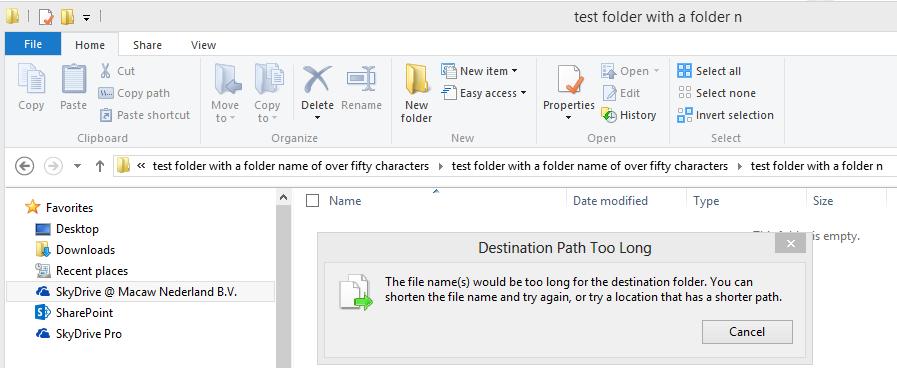
  • Too many characters: A file name of more than 128 characters (including spaces) or a path of more than 256 characters.
    So you will hit trouble if you have a lot of nested folders with long folder names. Fortunately, the SharePoint site and the SkyDrive Pro folders on your computer will warn you if you create folders that already run over that limit by themselves.
  • Over 2 GB
  • Blocked file types .ashx, .asmx, .asp, .aspq, .axd, .cshtm, .chtml, .json, .rem, .shtm, .shtml, .soap, .stm, .svc, .vbhtm, .vbhtml, .xamlx,  (This is for SharePoint Online, SharePoint 2013 on-premises blocks a lot more; see Types of files that cannot be added to a list or library)

And you can only sync OneNote files one way: create them in SharePoint and then sync to your computer. It does not work if you create it on your computer and then try to sync it back online.

Looking at the libraries, you cannot synchronise:

  • Over 5000 items site Document Libraries, which includes folders and files. This corresponds to the limit Document Libraries have for displaying items in a single view.
    You can synchronize up to a maximum of 20,000 items in your personal SkyDrive Pro document library, which includes folders and files.
  • Over 25 GB in your personal SkyDrive Pro library

When SkyDrive Pro cannot synchronise what’s on your computer into SharePoint, it gives an error message.

When you are doing something in the folder structure that will result in a path that is too long:

SkyDrive Pro warns you if your folders would result in a path that is too long

SkyDrive Pro warns you if your folders would result in a path that is too long

When your file name is too long or has invalid characters, you see an error icon with the file. You can investigate, by right-clicking on the filename and selecting SkyDrive Pro > View sync problems.

Right-click the file name to find out why it does not synchronise

Right-click the file name to find out why it does not synchronise

The Upload center gives you an error message where applicable, and short cuts to places where you could resolve the problem

The Upload center gives you an error message where applicable, and short cuts to places where you could resolve the problem

Please note: the actual message does not always clearly pinpoint the real problem: I get the message “Invalid characters” for a file that has a filename of more than 128 characters, none of which is invalid in itself.

All in all, SkyDrive Pro is a nice tool for storing your personal documents and for synchronizing files between your sites and between your computers. You just need to think about what you put where.

October 31, 2013

Popularity trends in your SharePoint Online team site

Filed under: Governance,Office365,SharePoint — frederique @ 23:19

People who provide content or manage sites want to know how much their content or their sites are used. They want to know if it is worth spending time on it. What is used a lot and needs to be maintained carefully. What was supposed to be very useful but turns out not to be visited at all. Based on that information, they can adapt their content management or site management strategy. In short, you need analytics for your intranet governance. Even when you are in the cloud. So how does SharePoint Online 2013 help?

As I mentioned in a previous blog post about the 2010 version of SharePoint Online, we only had an unsupported hack to access some numbers. And that stopped in March, when Microsoft upgraded the back-end of SharePoint Online. In the 2013 version, we have gained visible statistics, though they are very basic.

Still, we have something and it is quite democratic: all users can get some sense of how often content is viewed. Visitors can see how often a document or a page has been viewed, members can see in a library what are the most popular items. The more permissions you have, the larger the scale of the analytics you can consult: site owners can see popularity trends for their sites and site collection owners for the collection as a whole. Just don’t try to drill down and slice & dice by interesting criteria.

Site visitors see how popular individual items are

When they open the item menu “…”, even visitors who only have read permission see how many times the item has been viewed. You don’t see anything displayed there when you are the only one who has visited a newly added document once or twice, but a number appears when the document has been visited more often.

The visitor can see the number of views of the selected document

The visitor can see the number of views of the selected document

In addition, visitors can generate popularity trends reports for pages and files. When the visitor is on a page, he or she can open a Popularity Trends report for that page from the ribbon:

Popularity trends option in the page ribbon

Popularity trends option in the page ribbon

And the visitor can generate a Popularity Trends report for one or more selected document in a library: a tab is opened in Excel for each of the selected documents, and at the top of the sheet you see the name of the item.

Popularity trends for selected documents

Popularity trends for selected documents

This gives you an overview in Excel, in the form of lists and in graphs of the hits on this item over time: on a daily basis over the last two weeks and on a monthly basis over the last three years. So you can see if the item has gained or lost popularity. Or if it has popularity peaks, say, at the end of every month, when the entire team has to go to the selected page to fill out their travel expense report.

In Excel, you can do some manipulations. But what you cannot do is slice & dice by, for example, the country or department where the users are based. Or the page where the users come from when they land here or how much time they spend on this page.

These numbers emphatically do not mention the names of any user or any other personal information about the users. Only the number of visits, regardless of the people involved. That is why these analytics can be made available so widely without any legal privacy concerns.

Site members see the popularity of items in whole libraries

In a library, site members can check the popularity of files via the Most popular items button in the ribbon.
Note: For SharePoint Online, this only available in libraries, including page libraries, NOT in lists.

Site members have a button 'Most popular items' in the library ribbon

Site members have a button ‘Most popular items’ in the library ribbon

This leads to an overview in the form of a search result of

  • Most views, recently (i.e. over the last 14 days) and ever (i.e. since it was uploaded or created in the library)
  • Most views by unique user (the intranet knows of course who the users are, because we are logged on to the system)
  • Most recommendation clicks (based on item-to-item relationships calculated by the system. Maybe this report is not so clear to us, but the search engine also uses these data to calculate the relevance of results. Think “People who viewed this also viewed”.)

Because it is a search result, you can drill down by specifying a search term to find the items you are interested in or by filtering via the refiners on the left hand side.

Result of the most popular items in the library

Result of the most popular items in the library

And then you can look into the details for the item you are interested in, by clicking the Popularity Trends link under it.

Popularity trend over time for the selected item

Popularity trend over time for the selected item

The button says this is about ‘most popular items’, but you can also see what is less popular and that is very interesting as well: if nobody ever reads a document, you should either promote it better or just get rid of it to clean up your site.

Note: Visitors who only have only read permission see the button. But when they clicked on it, they used to get zero views for everything (If it does not work for visitors, it would have been better to grey-out this option for visitors, or they may get the wrong impression). However, when I last tested it, it did seem to work just fine. So maybe the problem has been fixed. Until I am sure about that, I will assume this functionality only really works for users who have edit permissions.

Site owners see aggregated Popularity trends for their sites as a whole

In site settings, site owners have the option Popularity trends.

Popularity trends in the Site Settings

Popularity trends in the Site Settings

When you click on that, you only get one option currently: generate a usage report.

The option to generate a usage report as a site owner.

The option to generate a usage report as a site owner.

And that gives you the usage details for the site as a whole, in the same kind of report that the site members can get for an individual item.

Usage details for the site as a whole

Usage details for the site as a whole

Note: the permission component ‘Create subsite’ needs to be enabled for these site owners. Otherwise they see the option on their site settings page, but it leads to an access request page.
This is rather awkward: in the intranet we built, we want to control site creation, so site owner do not have permission to create their own sites. As a result, they can’t see the usage statistics either…

Site collection owners see an even larger aggregate and search reports

At the level of the site collection, site collection owners have the additional option Popularity and search reports.

Options for the site collection owner: site popularity trends and collection popularity and search resports

Options for the site collection owner: site popularity trends and collection popularity and search resports

From there, you can also open search reports that tell you not just how much the search is used (Number of Queries) but also how it is used (Top Queries, Query Rule Usage) and where it fails (Abandoned Queries, No Result Queries).

Usage reports at the level of the site collection

Usage reports at the level of the site collection

Note: in the large SharePoint Online environment where I often work, we have a separate site collection for Search. We have to go to that collection to see which queries the users started from the portal. The search reports included in the portal collection display “automated” searches for specific content types that we use to roll up information dynamically.

For the aggregate of the search reports over all site collections, go to the SharePoint admin center.

Reports in the SharePoint admin center

Reports in the SharePoint admin center

Conclusion

So am I happy with the analytics options we have at our disposal in SharePoint Online 2013?

Well…. it does not take away the need for a serious third party tool if you want to really monitor what happens with your content.
I’ve read that these analytics were designed to make the search functionality smarter rather than make the content managers work smarter by monitoring usage.  That makes sense from what I see and in particular from what I don’t see: no easy drill-down, no slicing & dicing by type of user (department, country etc), no real-time data, no data about the time of day when anything is used, no information about where users clicked to get here or how long they stay here, what device and browser they use….

But it is better than what we used to have in the SharePoint Online 2010, especially since this spring. Mostly because site owners and content owners can see for themselves if their documents, pages and sites are being used now and over time. It’s a start.

September 30, 2013

Cloudy upgrade finished, here comes the sun

Filed under: Office365 — Tags: , — frederique @ 17:57

It took us a while to prepare for the upgrade of our SharePoint Online 2010 to 2013, but we made it! We dealt with the customizations, tested everything beforehand, planned  in detail, and then performed the upgrade over a weekend. Again, not all smooth sailing. But now we are surfing Wave15 with its shining new possibilities.

Develop wave15 versions of customizations and test everything

As I mentioned in a previous post, we had to develop Wave15 equivalents of customizations, in particular the masterpage, the styling , some site templates, and a couple of webparts.

We tested everything first in our development and then our testing environment. These are separate domains in the cloud, so they are environments that need to be upgraded in their own right. Fortunately, Microsoft had upgraded these for us before they upgraded the production environment.

The testing environment has a good copy of the portal, but it does not contain a copy of all team sites that populate the production environment. We had set up examples of business solutions that were configured in the front-end: workflows using standard sharepoint functionality and SharePoint Designer, special views including conditional formatting and structured forms set up in SharePoint Designer, managed metadata navigation, custom page lay-outs, publishing pages with text and images, content query web parts, note boards, video web parts,…

So to check what would happen to the real life sites, we tested evaluation copies of the production sites. By the way: these evaluation copies are only available for a month, which is not that much if you are busy and have a lot of sites to test…

Involve the business

In the environment of this multinational client, the intranet team is responsible for the framework, but team site owners are responsible for their own sites. They can use the standard SharePoint options to change the configuration of their sites. As they know their sites better than anyone else, they are most suited to check if their sites survive the upgrade. And in any case, 200 eyes see more than 2…

So over a month before the upgrade, we asked all site owners to check the evaluation copy of their site, pointing them to an article with the main differences that they should be aware of. We had taken the other users off the evaluation copies, to avoid confusing the audience at large. Only the site owners could test them, plus the colleagues they decided to involve.
In the week before the upgrade, we warned them that the sites would be unavailable during the upgrade weekend, asking them to discuss it with their users. And that we would need them to check their sites after the upgrade was finished.
We also notified all users two days before the upgrade.

We approached the owners of known “special attention” sites in person and with more emphasis: sites with complex business solutions, like custom workflows, and/or site that impact the business heavily, because they are used a lot in people’s daily work. We had meetings with the owners of sites that looked like they might break. And we made appointments with some key owners, that they would test their sites during the upgrade weekend, so that there would be no surprises in these important sites when the first users arrived Monday morning.

After the upgrade was finished, we notified all users and specifically all site owners. And again these “special attention” sites and their owners received that special attention. Quite a few users and owners needed additional explanations or had some issues. They could contact the intranet team for that, so that kept us busy for the week or two after the upgrade.

Plan the upgrade in detail

We wanted to reduce the risks as much as possible, so we planned the upgrade itself in full detail, with a lot of testing.

Earlier

  • Investigate the risks and mitigations: once you do the upgrade, there is no way to roll back to the old version.
    • Fall back scenario in case the first checks are disastrous: don’t push the upgrade button if we know it breaks the site collection, but reschedule for the next weekend.
    • In case the portal breaks, prepare a very basic “homepage” that would link to the key applications outside of the intranet. If the other site collections were still working, this page would also link to those team sites.
    • Microsoft was confident that the actual content could not get lost; as a last resort we could get it from a back-up they make.
    • Prepare e-mail messages to warn users of any disaster.
    • Export our own lists and libraries, that we use to manage this project, to get offline emergency copies.
  • Plan the upgrade tasks and set up lists and views to facilitate them: when to upgrade the site collections, deploy the customisations, test the result, communicate to stakeholders
  • Prioritised the testcases, to make sure we checked during the upgrade weekend everything that could cause major upheaval if it would not work on Monday morning: the homepage, reading news, the basic functionality of team sites. We had about 200 testcases to perform the tests systematically and we had seen in our test environment that it would be too much work for one weekend. The testcases with lower priority could be tested in the days after the upgrade weekend.
  • Plan the time: during the weekend, starting after office hours on Friday. We compromised with the Brazilian site owners, whose office hours ended after our starting time. We knew the upgrade and the subsequent tests would take time, and we wanted to have that time without interfering too much with the business.
  • Plan the upgrade order of the site collections: it does not matter much according to Microsoft.
    • The MySites need to be upgraded first, but they were already upgraded when Microsoft flipped the switch.
    • The Content Type Hub and the Search collections needed to be upgraded before the customizations could be rolled out, so they were scheduled first.
    • The key portal site collections and examples of collections of each team site type were scheduled next.
    • The site collections with key Brazilian sites were scheduled last.
  • Schedule of the participants, which team members, technical specialists, Microsoft contacts would be involved at what times and how to contact them.
  • Finish all tests and fixes on the test environment in time, so that everything is stable.
  • Communicate to the site owners and users, when they cannot use the intranet because of this scheduled maintenance, what we expect of them with regards to testing, and what they should do if they have questions or issues.
  • List all “special attention sites” and the appointments we made with which owners, with quick links to open them.
  • List all “special attention elements” that were broken in evaluation copies and that were not available in the test environment, so that we can check them more thoroughly (with quick links to examples of pages with such elements).

Earlier on day the upgrade was started

  • Check and clean up before the upgrade of key functionality. Just making sure the evolving platform hadn’t broken anything important before we started with the upgrade, so that we would not blame the upgrade for coincidental issues. Clean up hidden web parts on the homepage, to keep the upgrade of such an important page as simple as possible.
  • Set up tests like starting workflow instances, for which we wanted to double-check that a running workflow would keep running. For the one workflow solution that was broken in the evaluation copy, we exported all relevant information, to make sure nothing would get lost.

During the upgrade session

  • A temporary portal homepage switched on at 18:00 on Friday, informing any user who would still visit the intranet, that it was being upgraded.
  • Site collections upgraded and customizations deployed in batches, their status administered in the list of site collections
  • Upgraded site collections tested, first the basics, to see if the upgrade has “landed”, at all and then the high priority test cases.Administer the result in the lists.
  • Check the priorised “special attention sites” and inform the site owners, taking into account the appointments we made with particular site owners who would test during the weekend
  • Check the “special attention elements”

So how did it work out in that upgrade weekend?

Most of the upgrade went smoothly and as planned…. except for the very first step: when we clicked the upgrade button, the site collections got stuck in ‘waiting to upgrade’. It took us 24 hours to get beyond that first step. After that, we rolled on at top speed, so that were were finished before everybody’s Monday morning, even for the Australian users.

  • The first site collections we tried to upgrade, got stuck at ‘waiting to upgrade’. We have a couple of completely standard out-of-the-box team site collections, so we tried those after the problem arose, but no luck there either.

    Stuck at 'waiting for upgrade'

    Stuck at ‘waiting for upgrade’

  • We had to ask Microsoft Support to get these upgrades going. In the end, they solved the problem by upgrading the sites from the back-end: the same upgrade functionality, but started from a script instead of the regular button.
  • We had some issues getting through to the appropriate Microsoft support engineers, because of a mix-up with the Premier support service id-number. Note to self: next time, check the support quick reference card as thoroughly as SharePoint itself, so that we can fix any misunderstandings beforehand.

Once the upgrade started rolling, we saw the following:

  • The upgrade time of a site collection mostly depends on the number of sites it contains: mostly it takes less than half a minute per site. But that still adds up to hours, if you have almost 800 sites and subsites in almost 30 site collections.
  • When the upgrade starts on a site collection, it really cannot be reached for a minute or so. : the user get the message “Sorry, something went wrong”.

    Sorry, something went wrong...

    For a very short time at the beginning, the upgrading site is really unavailable

  • After that, you see the Microsoft masterpage appear and you can navigate through the upgraded site collection root. The pink bar at the top warns you “We’re doing work to improve the site. Please bear with us if you experience temporary delays or glitches”

    Upgrade in process

    During the upgrade: “We’re doing work to improve the site. Please bear with us if you experience temporary delays or glitches”

  • There you can monitor the upgrade status page: the same page where you clicked the upgrade button.
    When the upgrade is finished, you can see that here. You can also see how long the upgrade took and if there were any errors. Attached to this page is a log file of the upgrade and – if there were any errors – a log file of the errors.
    Note: we did not get any errors during the upgrade of the site collections. The customisations only resulted in warnings, that were included in the Log File.

    Upgrade completed successful

    Summary of the upgrade status

And after the site collections were upgraded, the customisations were rolled out, the high priority test cases performed, the key sites checked, the owners notified… everything nice and smooth. So in the end, all our preparations did pay off.

Ok, we are still working in the Cloud. But now I am not suggesting that this cloud could burst ; this is the cloud of the silver lining and even the sun-kissed, fluffy white cloud floating in the blue sky. Here comes the sun!

August 31, 2013

Our new option for bulk editing: Quick Edit

Filed under: Office365,SharePoint — frederique @ 20:06

We often have to add, edit or delete dozens of list items or document properties in one go. Opening each item one by one drives you crazy quite quickly. So we are very happy with the options SharePoint offers us to do these bulk operations quickly and painlessly. The latest one is called Quick Edit, which replaces the datasheet. It not only has a new name, but it also has very practical new features. But not everything works as I expected.

Quick access to the Quick edit option…

We now have a 1-click button ‘Quick edit’ at the top of the list or library, so that you don’t need to open the ribbon first.

Edit this list

Edit this list: the quickest way to start bulk editing

In the Quick Edit view you get then, you can add edit the values of most fields, and add rows and copy over the value of fields, all very quickly and easily.

… but not for views with other Styles than Default

However, the quick edit only works if your list or library is displayed in a view with Style = Default. If the view has any other style (such as basic table or newsletter), the modern 2013 interface for the quick edit disappears and the Quick Edit option in the ribbon is disabled. At the same time, the modern interface for adding items and switching view disappears; you get the old ‘add item’ link at the bottom of the list. Weird huh?

No Quick Edit if the view has another Style than Default

No Quick Edit if the view has another Style than Default; this example has the Shaded style.

Microsoft has said that this is by design, which probably means that they know it does not work. I have requested that they fix this anyway via the change request form, hoping that more people do so and Microsoft fixes this.

…and not for grouped views

Another unexpected limitation is that the Quick Edit is not available for view where Group By is used. The option at the top of the list disappeared, and it gets greyed out in the ribbon.

No Quick Edit for a grouped  view

No Quick Edit for a grouped view

The old school datasheet could handle grouped views without blinking, but the new Quick Edit is stumped by this very common setting that makes our views a lot easier to read. Again, Microsoft sells it as “by design” and, again, I have begged them to solve this by way of a service request and subsequent change request.

Quick Edit works for management metadata!

What exasperated me and my users most about the datasheet view in SharePoint 2010 was our inability to quickly edit managed metadata with it. Our environment uses managed metadata a lot, so bulk operations were always a pain.

But now we can add, edit and delete managed metadata in the Quick Edit. This is a serious win and I am very happy with it! You can just type in our managed metadata, or use the assistance you get in regular managed metadata fields, to select your value from the company taxonomy.

Quick Edit of Managed metadata

Quick Edit of Managed metadata

Quick Edit allows you to insert pictures in multiple lines of text fields

In enhanced multiple lines of text fields, you can not only insert pictures and other advanced layout in the regular edit form but also in the Quick Edit mode. You couldn’t do that in the old 2010 datasheet.

Insert a picture in Quick Edit mode.

Insert a picture in Quick Edit mode.

Strangely enough, the Rich Text variant of the fields cannot be edited in the Quick Edit mode – it looks like that one is being deprecated, as the option only becomes available when I edit a column, not when I created it.
As in the 2010 datasheet, the versions of the multiple lines of tex field that allow you to append text and keep track of the versions, still don’t work in the Quick Edit. A pity, but not unexpected.

Note: different names are used for it

 The datasheet was always the datasheet, but now we have to pay attention:

  • In the ribbon this option is called Quick Edit
  • In the list, the shortcut is called Edit this list.
  • When you predefine a view like this, it carries the old name Datasheet view.
  • Microsoft refers to it as inline editing in articles like Add, edit, or delete list items  (Inline edit used to be something different in 2010, but apparently now it is the same quick edit functionality.)

Bottomline: I like the good stuff, such as the quick access and the option to edit managed metadata. And I hope that Microsoft fixes the weaknesses soon, because it seems like they just didn’t have time to implement it for other types of views. Now’s a good time guys 🙂

July 1, 2013

Update on our cloudy upgrade

Filed under: Office365,SharePoint — Tags: , — frederique @ 23:32

We are starting to surf wave15. Since my previous post, we are taking big steps towards the upgrade of the SharePoint Online, although it still is not all smooth sailing. A summary of what we have seen so far.

The process

Microsoft announcements

Microsoft sent us e-mails that got more and more specific:

  • Preliminary: A few months before the upgrade, when the timeline was not final yet, Microsoft announced the upgrade, sketching the procedure and providing links to further information. We did not think that their statement that we did not have to prepare anything would apply to our rather complex implementation, and we were right about that.

    Preliminary announcement

  • In 4 weeks: a month before the upgrade, we received an announcement that also explained how we could ask them to postpone our upgrade via the administration pages, and a button to try the upgrade with a small group of users.
  • The upgrade date: Two weeks before the Microsoft upgrade we received the exact date when the upgrade would start.
  • Confirmation: After the Microsoft upgrade was finished (the next day), we received a confirmation.

You can postpone once

If the proposed date does not suit you, you can postpone it for at least a month via a button on the portal administration pages. You can only postpone one time, then you have to go with the flow. We did not postpone, because we wanted to get the upgrade as soon as possible.

Preparations to the upgrade below decks

Although we were upgraded by the end of June, the underlying software was already upgraded to wave15 by the end of March, as I described in a previous post. This broke some functionality at that time, but fortunately Microsoft repaired it soon afterwards. The advantage was that these features were wave15-ready after that, so that they did not cause any new issues in the next steps of the upgrade.

Ready for upgrade: Microsoft flips the switch

Microsoft flipped the switch on our environment end of June. The environment was ready for upgrade from then on, but the upgrade was not implemented on the front-end. The site collection owner can do that themselves, per site collection. I am very happy with that, because now we can flip the front-end switch when we are really ready.

The site collection owners see a pink bar at the top of each page: “Experience all that SharePoint 2013 has to offer. Start now or Remind me later”. Innocent users, including site owners, do not see this message. Only site collection owner have permission to perform the upgrade and only they see the message. So there is no risk of an over-eager site owner accidentally upgrading anything.

Check the health of your sites

On the site collection administration page, there is an option ‘Site collection health checks’. This generates a report of the elements that could cause problems.

Evaluation copy

I am very happy with the option to Try a demo upgrade. That provides you with an evaluation copy of a site collection, where you can check what happens to sites in general and complex and important real-life sites in particular. It is a upgraded copy of the site collection, so it is not exactly the same as upgrading the site collection itself. But it does give you a good idea of the upgrade result.

Upgrade or try a demo

Note: These evaluation copies have the same permissions as the original sites in the collection. I do not want innocent users to start working accidentally on the evaluation copies, so I have taken them out of the copies of real life sites. Otherwise they could enter the site via the search result by mistake.

These evaluation site collections are not visible in the site collection overview of the portal administration. You can find them, once they have been created, via the same ‘try a demo’. But the address of the copy is easily guessed from the original url:
https://ourcompany.sharepoint.com/sites/collection/ becomes
https://ourcompany.sharepoint.com/sites/collection-eval/

The copies remain available for a months and then they are automatically deleted. They are not synchronized in any way to the original site after they have been created. So make very sure that you use them only for experimenting and testing and not for any ongoing work.

Note: I received some of the evaluation copies within the hour, others within the two day limit. But a bunch of them got stuck and I had to ask Microsoft to provision them via a service request. So I was very happy I had requested them at an early stage.


Evalation copy

Upgrade the site collections

The owners need to upgrade their site collections within three months after Microsoft has made the upgrade available, otherwise the front-end will be upgraded automatically. The owner just need to push one button ‘Upgrade this Site Collection’.

But if your collection needs any specific settings or support files to work properly, you will have to do those right after you push that button. That is why we wait until we are sure we have caught all key issues and we will communicate to the users that they will not be able to use the intranet for a couple of hours.

Microsoft recommends to upgrade the ’MySite’ first. And actually, they already set this in motion when they flipped their switch: we have the new MyProfile since the end of June, although the rest is  still the “old” version. Users who already had a MySite (we didn’t have many yet), each had to upgrade their own MySite – otherwise others could not see their profile and not open it via the people search.

Communication and training

The users will get new options, but they also need to know how the classics work in the new interface. We will explain, especially to the site owners, how it will work after the upgrade.

The result

We are testing the upgrade in a separate environment and in evaluation copies. Here we found that many things kept working properly. But not everything.

Custom master pages disappear

When we upgrade a site collection, our own masterpage dropped out and we fell back to a standaard Microsoft master page; Microsoft had already warned for it, as many things now work in a different way. So we created a new version of the master page, with associated styles and script

The old site templates cannot be used

Site templates created for SharePoint Online 2010 are invisible and unusable in SharePoint Online 2013. This applies to programmed templates as well as templates that were created using the option ‘save site as template’. So we are recreating those.

Some pages don’t work

Pages that are not stored properly in a library and pages that have some problem in the page layout don’t work anymore. So we have to save these pages separately. Fortunately we have seen this error only for a few kinds of pages.

Sorry, something went wrong

Most settings keep working

The site navigation, for example, and list settings like choice fields and versioning survive the upgrade. This also applies to the views in web parts on pages, even if they have been enriched in SharePoint Designer with conditional, for instance. We haven’t had problems with content types either after we had survived the issues in the preliminary preparations that caused us to republish a lot of custom content types.

It is the custom web part, as a species, that is endangered: some keep working, others don’t. We have also had a few issues with the presentation of standard content query web parts: groupings were no longer displayed in several columns, following the web part settings, but in one column.

Workflows keep working

We have several advanced workflows created in SharePoint Designer 2010. They already were unstable, but the “half-way upgraded” situation that we are in now, between Microsoft making the upgrade available and us implementing it on the front-end, seems to destabilize them even further. But apart from that, it looks like the workflows keep working.
In order to take advantage of the new possibilities, of the new workflow engine, I will have to rebuild the workflows. Unfortunately I cannot do that yet, because the 2013 workflow option has been disabled in SharePoint Designer, pending the upgrade.


So at his time, we are testing and fixing things, and starting to explain to the site owners how their sites will work. Working on it…

June 30, 2013

Digital Holiday Place

Filed under: Digital Workplace — frederique @ 22:58

I have just got back from my summer holiday, which definitely took place offline, in real life fresh air. But I enjoyed some great digital support. That is what the digital workplace is about, helping you to do what you need to do effectively and efficiently.

No, I did not keep working via e-mail and the SharePoint team sites that I could have accessed from abroad. I just used digital tools to facilitate and enrich my holiday. Ok, and kept an occasional eye on my mailbox for serious crises.

We went island hopping on Orkney, the islands in the north of Scotland, and we wanted to see a lot of its nature and culture. No leaning back on an all-inclusive beach: our holiday entailed a lot of planning and research beforehand, tweaking and deciding on the spot, and more research afterwards – all part of the fun.
We started at home, with our full range of online machines. And we brought a tablet and a couple of smart phones with us, taking advantage of the wifi facilities that many of the accommodations offered.

Browsing and booking online

People we met during our travels said the same thing: “how did we manage to arrange a trip like this before the internet was available?” Now we could find out online where to go and what to see. And we could find and book the ferries that would get us there and the B&B and hotels where we could stay. In some cases we had to revert to a telephone – one of the smaller islands had had issues with their internet connection, so they had not received our request. But even so, we found all the timetables and addresses and everything easily on the internet.

Preparing in a shared workspace

There were four of us, living in different cities. So we kept track of our options, bookings, reference numbers, contact info, actions, packing checklist and all of that online. Google docs was our friend here, plus the Google drive app that we used to pull it all offline went we hit the road.

Google Drive to take our google docs offline

Consulting information offline

To keep our car from exploding, we did not bring too many paper books and guides. And to keep our phone costs from exploding, we only went online via wifi. So we took a lot of information offline, mostly on the tablet for ease of use.

  • Downloadable leaflets and books that were only available electronically. For example, the organisation Historic Scotland no longer publishes a paper version of its Members Handbook: it now is a nicely searchable pdf file. We even took the tablet on a walk, because we had found an interesting leaflet with a map and description. It was worth lugging around the additional weight, because there was no paper version to be found, and it was easier to read on the tablet screen than on the smaller phone screen.
  • E-books that would take too much space in print: Wikipedia books, a copy of a detective novel that is set in an area we visit, the poems of Robert Burns who is mentioned all the time, our portable library of reference books and entertainment basically.
  • Multimedia apps, such as the RSPB app of British birds have value with respect to the paper version in that is also offers sounds: bird calls.

Checking up-to-date info

We were in Scotland, so we wanted to check the weather forecast, to decide whether we should take that long walk today or tomorrow. We actually looked at the Met Office’s (mobile) site and two different weather apps for a second and third opinion, which served us well.

The sea is everywhere on these islands and several sites we wanted to visit are only accessible during low tide, so we checked the tide tables. And the opening hours of the heritage centers and tombs that were not simple accessible via a gate in a field.

What we also kept an eye on, were the announcements of the inter-island ferry service. It turned out some of our ferries departed at a different time and one did not run at all on our planned date, due to mechanical troubles and industrial action…

Checking the weather

Researching new leads

It was great that we could go online in most of our accommodations, because that allowed us to research the questions that we came up with during our walks and visits. What were those egg shells that we saw? Do guillemots stick close to their nest or do they fly far to forage? Is ‘voe’ a viking word and what does it mean? Any new findings in the dig of the Ness of Brodgar? What is that rock turbot that’s on the menu? Google and wikipedia helped us find many answers.

Digital holiday after the fact

We went offline in the real world to see the scenery, inhale the fresh air, watch the birds and the flowers, feel the rocks and the sand beneath our feet, pick up interesting pebbles and shells, savour the fish and shellfish, crawl through the archaeological remains and inspect the artefacts. But I also took over 3500 digital pictures of everything. So I’ll spend a lot of time on my computer, reliving our holiday digitally when I select my photos and publish the interesting ones on Flickr.

Puffin greeting at Castle o' Burrian, Westray

May 31, 2013

Twenty-four hours of digital workplaces

Filed under: Digital Workplace,Usability — frederique @ 22:31

DW24, twenty-four hours immersed in the world of Digital Workplaces. Guided tours, discussions, inspiration, lessons learned. Granted, I had to sacrifice most of my night’s sleep, but it was worth it.

This used to be the IBF24 marathon about intranets. But intranets have expanded so far into platforms for collaboration and social interaction that it makes more sense to talk about digital workplaces.

These are the things that struck me most:

  • A lot of participants emphasized that is it about meeting the business needs rather than the technology
  • Gamification can stimulate, but be careful how you use it, or it will just be “pointification” (Accenture has years of experience with this kind of motivational design)
  • Story-telling can work to engage: user tell their stories
  • Complete, integrated digital workplace is much appreciated (Virgin has a Cisco based platform for internal collaboration that includes voice messages and everything)
  • Organisations with customers or departments in Asia or Africa go for a “light” homepage (e.g. IBM: search and three boxes with a couple of headlines)
  • Homepages can be unusual (big personal picture and important links; XL, AMP) or -well- ugly (Weston) but if you can get to key content and functionality from there, it works…
  • Homepages usually contain: links to my tools and sites, news, social/culture elements. Some directly on the page, some behind a button.

April 30, 2013

It’s on the Team Site!!

Filed under: SharePoint — frederique @ 17:41

We develop spiffy solutions, smart systems for knowledge sharing, efficient support for business processes, fun feeds and conversations. But we still have a lot to gain with the basics of team sites, plain and simple.

I just watched these videos again. They are not new, they are quite silly… but they reflect situations that I still encounter in real life in 2013.

My laptop actually fritzed the other day. Completely unsalvageable, just before I had to leave for a business trip to Australia… sigh… But I did not lose anything important, because it all lived in team site lists and libraries. So I could get a replacement laptop and download what I needed to use offline on the flight.
But too often I see people search frantically for documents that they have somewhere on the wrong computer, somewhere in there e-mail, not sure who has the last version.


There we go “It’s on the TEAM SITE!!” We say that a lot, to anybody who asks for a document, the team’s holiday planning, the issues we found when testing…

It’s the new RTFM: Read The Fine (ahum..) Team Site!

« Newer PostsOlder Posts »

Powered by WordPress