blog.frederique.harmsze.nl my world of work and user experiences

September 29, 2010

[SharePoint2010] Ribbon context sensitivity includes the browser and windows version

Filed under: SharePoint — Tags: , , — frederique @ 21:27

Hey, what happened to that ribbon option I used yesterday? Now it’s greyed out and I get a message that ‘This control is currently disabled’. What happened?

Library ribbon in Firefox

No Upload Multiple Documents in Firefox 3.6

What happened is that I was working on another computer yesterday, that has another browser and windows version.

At first sight, SharePoint 2010 seems to work just fine in any of my environments – at least after I stopped trying in Internet Explorer 6. Which made sense, as I had heard that SharePoint 2010 works with different browsers. But I hadn’t looked at the fine print yet.

So I was surprised to see that, for example, in Firefox 3.6 the Datasheet view, Open in Explorer and the option Upload Multiple Documents do not work. Also, the Sync to SharePoint Workspace and Connect to Office do not work on that machine, maybe because it is running Office 2003.

Library ribbon in IE8, Office 2010 and Windows 7 versus Firefox, Office 2003 en Windows XP

Library ribbon in IE8, Office 2010 and Windows 7 versus Firefox 3.6, Office 2003 and Windows XP

Another example: In Windows XP, the option Upload Multiple Documents does not offer drag & drop functionality. That does not depend on the browser, as my IE8 didn’t help, but on the Windows Explorer functionality of Windows itself it seems.

Upload Multiple Documents by drag& drop works in IE8 Windows 7

Upload Multiple Documents by drag& drop works in IE8 Windows 7

And I am still not sure why the options E-mail a link, Download a Copy and Send To are disabled when I select more than one document in the library or a document set. Even in IE8 and Windows 7. Didn’t these work in the beta? Am I doing something wrong or have they been disabled by design?

At least now I know that the ribbon is not just sensitive to the context IN the site, but also to the context OF the site. And if I really want to see what my options are, I take my newest computer, with IE8, Office 2010 and Windows 7.

For the details, see this Technet article Plan browser support (SharePoint Server 2010).

August 31, 2010

[SPD2010] Conditional formatting – highlighting what’s hot

Filed under: SharePoint — Tags: , , — frederique @ 20:59

As I’ve said before: SharePoint lists are powerful, and we use them to great effect, for example, to keep track of our tasks in project sites.
On the homepage, we typically display the tasks that are most relevant for the user: the tasks assigned to me, the ones whose deadline is nearest displayed at the top. High priority tasks are either in a separately filtered webpart, if there is enough room, or mixed in with the rest and hopefully the displayed priority label draws enough attention.

However, any users, especially ones familiar with Excel, have asked me to highlight the overdue high priority tasks. Or to highlight the status of projects that are in trouble in a long programme management list. Good point. And fortunately, in 2010 I have that in my toolbox: SharePoint Designer 2010 that is.

Conditional formatting with SharePoint Designer 2010
SharePoint Designer 2010 allows me to highlight list items that are important according to my criteria, as a no-code solution, without any programming. Just follow the wizards.


  1. Open the page where you want to highlight these important list items. In my example, I open the task dashboard page.

  2. I put the cursor in the task list, and the ribbon displays the option Conditional formatting.

  3. I want to highlight the task that is important, so I select Format Row.
    Conditional formatting: an option in the ribbon for the selected list

    Conditional formatting: an option in the ribbon for the selected list


  4. In the Conditional Criteria pop-up, I set the criteria for the tasks I consider important enough to highlight: overdue high prio tasks. So Priority is High and the Due Date is less than the current date.

  5. Click the Set Style button, to determine what these overdue high priority tasks should look like.
    Condition criteria pop-up

    Condition criteria pop-up


  6. In the Modify Style pop-up, I set the background color to red and the fond type to bold, so that these tasks will really stand out. At the bottom of the pop-up, I can see a preview of the result.
    Modify style pop-up

    Modify style pop-up


  7. I already had some tasks entered in my project site. So as soon as I click OK, SharePoint Designer shows WYSIWYG what those tasks look like; you don’t have to go to the browser. But you can also see it in the browser.Br>
    Conditionally formatted list seen in the browser

    Conditionally formatted list seen in the browser


In this manner, you can combine criteria. In my example, I made sure that overdue high priority tasks are bright red, and overdue tasks of lower priority are a lighter color, but still more visible that the standard white tasks that haven’t met their deadline yet.
It took me a few trials and errors to find out would be most clear, but fortunately, you can easily change the conditional formatting.

Changing the conditional formatting

Changing the conditional formatting, based on the WYSIWYG presentation in SharePoint Designer

In the example discussed above, we highlighted entire rows, drawing attention to an important task as a whole. But you can also apply this conditional formatting to specific fields, which correspond to cells in the displayed list.

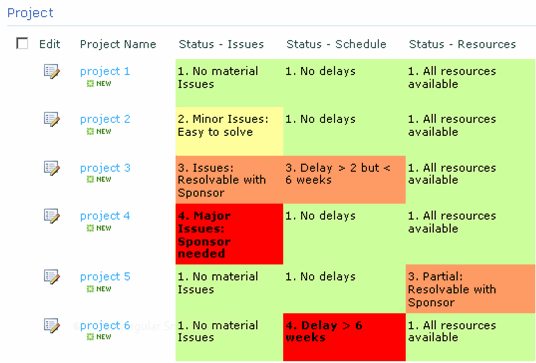
For example, in a project lists we consider the status of different aspects, such as the schedule and the resources of a project. These add up to an overall status, but we also want to see immediately what the status of these aspects are. For that, we put conditional formatting at the level of the cell: instead of indicating that we want to format a row, we select the TD cell element and then choose the option Format selection. And then we can set the style to visualise literally of that aspect of the project is in the red.

Conditional formatting on specific fields

Conditional formatting on specific fields: is this specific aspect of the project in the red or is it green?


A nice way to help the users handle their information overload, by ensuring they see what’s most important for them.

July 23, 2010

[SharePoint Designer 2010] Alternative options for list forms

Filed under: SharePoint — Tags: , , — frederique @ 23:33

SharePoint lists are powerful. For instance, team members can enter their tasks in a task list on their site and update them as they go, so that the entire team can monitor how they are doing. In another example, we created a projects list, where projects managers entered the main information about their project and updated the status of their projects regularly. That allowed higher level management to keep track of the program as a whole.

In these lists, we can include many fields, to capture all relevant information. Great.

However, if you are not careful, you end up confronting the poor user with a huge edit form, even if he only needs to update a status field at that time. In the old SharePoint, we could only change the order of the fields and add descriptions to give the form some structure and highlight the fields that are most important most of the time.

In 2010 (not just the year, I mean the SharePoint), we can create alternatives for adding and editing these list items, in addition to the default forms. We can even promote our new edit form to the default option. Also, we can put a version of the form to create a new item directly on the homepage of our site.

How to create alternate edit options
For instance, we need a short version of the form for editing tasks, that the team members can use to do a quick update, without being hampered by fields that are irrelevant at that point. How to do that?

Open the site in SharePoint Designer 2010 and click to the tasks list. On the right hand side of the summary page, you see the forms that are available in the list, such as the default edit form EditForm.aspx.
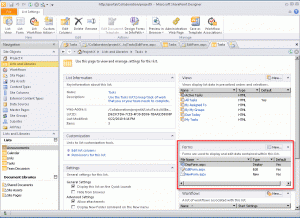
Summary of the Tasks list in SharePoint Designer 2010, with  the Forms section

Summary of the Tasks list in SharePoint Designer 2010, with the Forms section

Click the New button in the forms section and enter the settings of the new edit form we want:

  • An edit form,
  • Set as the default, so that the edit icon in the list opens this new Update Task form.
  • Select ‘create link in the list item menu and ribbon’ so that this option also appears in the list item menu, in addition to the standard Edit Item. And type in the label that should be displayed in that menu.
Settings of the new list form in SharePoint Designer 2010

Settings of the new list form in SharePoint Designer 2010

When you click OK, UpdateTask.aspx is added under the heading Forms. To determine what the user should see in that Update Task form, click that form name.

To remove unwanted fields, click Add/Remove columns in the ribbon. Or simply remove that row in the table. In addition, you can format the form to highlight the most important field, such as the status label in the screenshot below.
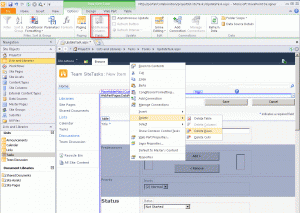
Customizing the new list form in SharePoint Designer

Customizing the new list form in SharePoint Designer

Once we have saved this customized form, it is available in the site.
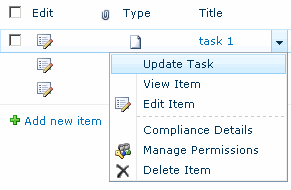
The new edit option in the list item menu in the site

The new edit option in the list item menu in the site

And clicking on the edit icon opens the short form we just created.

The customized short form Update Task in the site

The customized short form Update Task in the site

How to put the New item form directly on the page
For the edit options discussed above, the user has to click an edit icon or open the list item menu to start editing. For creating new items, we sometimes want the user to start typing directly on the page, without clicking any New Item buttons.
SharePoint Designer 2010 allows us to do that: insert the actual form on the homepage of your site or on a specially created dashboard page. How to do that?

Open the page where you want to add that new item form in SharePoint Designer (Edit file).
Put your cursor where the form should appear, click Insert > New Item Form in the ribbon, and Select your list.

InSert the new item list form directly on a page in SharePoint Designer 2010

InSert the new item list form directly on a page in SharePoint Designer 2010

Then you can customize the form that has landed on the page. The default version of the ne w task form is very sober, so we add the field Assigned To. We remove the fields Modified and Modified by in the same pop-up window.

Adding and removing columns to customize the form on the page

Adding and removing columns to customize the form on the page

Once you save the page, you see this quick form for creating new tasks on the page.

Quick form for new tasks directly on the page in the site

Quick form for new tasks directly on the page in the site

So with SharePoint 2010, we can give users options to add and edit their tasks and other items more quickly and easily.

June 23, 2010

DIWUG slides 22 juni : SharePoint 2010 [dutch]

Filed under: SharePoint — Tags: , , — frederique @ 07:41

This is for the Dutch Information Worker User Group, hence the Dutch talk and slides http://www.diwug.nl

Dit zijn de slides die ik gisteravond heb laten zien in mijn DIWUG presentatie (ppt, 4MB):

No-code information worker solutions met SharePoint Designer 2010
Kenniswerkers willen effectief en efficiënt samenwerken. Met SharePoint 2010 kunnen hiervoor nog betere oplossingen gerealiseerd worden. En met SharePoint Designer 2010 kunnen we die oplossingen gebruikersvriendelijker inrichten en uitbreiden, zonder te programmeren.
In deze sessie kijken we vanuit een functioneel perspectief naar een paar van dit soort oplossingen en hoe je ze kunt configureren met SharePoint Designer 2010.
Spreker: Frédérique Harmsze – Macaw

May 31, 2010

Smart validation right out-of-the-2010-box

Filed under: Interaction,SharePoint — Tags: , — frederique @ 23:47

In SharePoint list and libraries, we can always specify if a particular field is required or not. For example, documents in a library have to be categorized, issues have to be assigned to somebody and tasks need a status, which can be ‘Not started’ of course.

In real life we often need smarter validation than just making a field required. To avoid messing up your process, a start date should be before the end date. To avoid losing money, the discount you give should be smaller than the actual cost of the item. And to avoid bothering your users, they should not have to fill in fields that are not important for this item. For example, high priority tasks really need a Due Date, which you can just skip for lower priority tasks.

Validation: the Due Date is required because the Priority is High

Validation: the Due Date is required because the Priority is High

In 2010, you can actually specify the validation settings for your list, in a formular with the available columns. This only works for “calculable colums”, not for multiple lines of text or lookups. If the formula is true, then you can save the item. And if it is false, then you need to fix the problem. You can specify the error message as well.

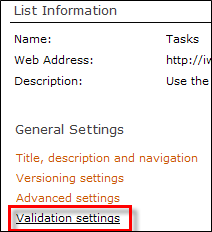
Link to the validation settings

Link to the validation settings

So, with the formula =IF(Priority=”1. High”,IF([Due Date]<>””,TRUE,FALSE),TRUE) we can ensure that high priority tasks always get a Due Date.

Validation settings

Validation settings

Now of course none of this ensures that the users actually enter sensible Due Dates or that they adhere to them. But we have at least made it a bit easier to enter the right data.

February 28, 2010

2010 shortcuts for editing document properties

Filed under: SharePoint — Tags: , — frederique @ 23:52

Ok, I’m not implying that now there are more than 2010 shortcuts. But I do mean that in SharePoint 2010 and Office 2010 we have some new and some improved shortcuts for editing the properties of documents stored in a team site. We want to edit these properties, for example, to provide or change a description and to select a category.

In the document library, we can now use the classical edit icon, drop-down menu and datasheet, as well as the new inline editing option. And in Word, we not only have the document information panel, but also the new backstage view.

Updated classics: Edit icon, drop-down menu and properties form in the Document Library

We still have the classic drop-down that already offered the Edit properties option in 2003. Now we have an updated version, which has more options.

Selecting the option Edit properties or clicking the Edit icon opens – as usual – the form where you can edit these properties. The update here is that the form is opened in a ‘pop-up layer’ instead of a separate page.

Updated classics: Datasheet view in the Document Library
To edit the properties of multiple documents at the same time, we still have the Datasheet view. This view now is offered as a button in the new ribbon.

New: Inline editing in the document library view
In the 2010 Document Library, we can edit the properties that are displayed in the view directly, by way of inline editing. The properties displayed in the view are the most important properties, which we want to change most often.

For that purpose we do need to enable inline editing in that view. In the ribbon, click Library > Modify View > Inline editing > Allow inline editing.

Modern classic: Document information panel in Word
When we create a new document from the document library, using the New Document button, Word opens with a Document Information Panel at the top. Hhere we can enter the properties straightaway. We already had that in 2007.

New: Backstage view in Word
In 2010, we have a new and improved ‘backstage view’. Here we can not only see the properties of the document, but we can also edit them inline. So we don’t have to go back to the document library to edit the properties, while we are working in Word.

We’ve always had more than one way to perform a task in a team site. That is a good thing, because the user does not always approach from the same angle, with exactly the same purpose. So the user can choose the method that best suits her needs at that time. And now we have some more options that allow us to get the job done more easily.

January 1, 2010

Happy 2010 !

Filed under: SharePoint — frederique @ 20:30

I wish you all a happy 2010. And I mean both happy “twenty ten” SharePoint and Office and a happy new year “two thousand and ten”.

It feels a bit weird, to see the name of our new SharePoint suddenly appear as a real-life year. We have been talking about and – later – playing with 2010 for most of 2009. And now it actually is 2010 and things get serious… Microsoft will launch it officially in the first half of 2010, so that probably means June, or May if we’re lucky.

On January 18 and 19 I will attend the SharePoint Connections conference in Amsterdam http://www.devconnections.com/SPEurope/ . A great chance to find out more about the new tool and to discuss it with colleagues outside Macaw – inside Macaw we fortunately already have plenty of opportunities for that, but it’s nice to meet other SharePointers a swell. Maybe I will see you guys there?

In any case, I wish you all the best for the new year!

December 31, 2009

SharePoint 2010: Interface of the Public Beta

Filed under: SharePoint — Tags: — frederique @ 17:51

In my previous post, I could only show images of the “secret” Beta. Here is what the Public Beta looks like by default. It’s not shockingly different from the secret beta, but is has evolved a bit.

Public beta - content page

Public beta - content page

They have cleaned up obvious obviously beta-looking things, like the language labels: instead of ‘en-us’ you see the full ‘English’ (I’m not sure what happened to the ‘us’ versus ‘uk’ distinction).
The Quick Launch has been styled. They have added an overview of ‘Recently modified’ to the Quick Launch.
On the other hand they have removed clutter from the ribbon, such as the separate buttons for ‘Edit HTML Source’  and ‘Convert to XHTML’ that have been moved into one dropdown called HTML. I guess the audience is not supposed to need single click HTML code manipulation.

So I suppose this will basically be what the launched product will look like – until you customize the look & feel of course.

November 20, 2009

SharePoint 2010: Now we’re editing content

Filed under: SharePoint — Tags: , — frederique @ 02:19

The public beta of SharePoint 2010 has been released. See Mirjam’s blog. So now we are not only talking: we are getting somewhere. Three cheers et cetera, but let me get back from celebrating the news to pointing out specific functionality that is not just cool but really useful.

Content on the page
What we often want, not just in internet sites but also in intranet sites, is pages where we can publish content. We want to explain about our unique selling points, the benefits of green tea, the process of quality assurance or whatever topic is on our minds. And we want to do that explanation in text, with a readable layout. Accompanied by images that illustrate and clarify our point.

Content editor
In the “old” sharepoints we can do that, using things like Content Editor Web Parts and Image Web Parts. But you have to click deeply to get to your text. The Rich Text Editor functionality for layout is not that solid. And it is a real hassle to add a picture interlaced with the content: you go back and forth between your text and the picture library where you have to store your picture before you can use it on the page. MOSS 2007 was already better at this than SPS 2003, but still messy when you try to actually create interesting pages.

Editable pages

In the new SharePoint 2010, creating and editing content on a page is a lot easier, because all pages are implemented as wiki pages. So


  1. You create a new page, or click on Edit on a web part page like the homepage of the site.
  2. You put your cursor in the content field
  3. And you start typing.

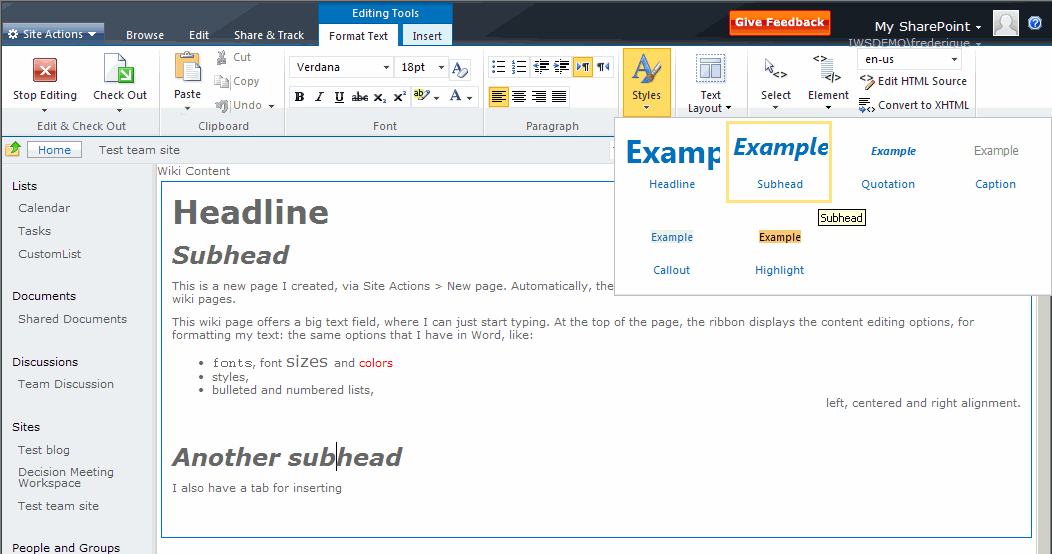
SharePoint 2010 - Format

SharePoint 2010 - Format


Ribbon
The ribbon that we’ve already met in Office 2007 is now all over SharePoint 2010 as well. On every page, you get a ribbon that offers you the options that are relevant to:


  • you, given your permissions – no editing ribbons if you have only read permission;
  • the page you are on [at least, that is what I think and hope];
  • the element on the page you have selected – when I select the Announcements web part, I suddenly see the options to manage the announcement list and its items.
    [That means that you have to be careful where you put your cursor, or you will get lost in the ribbon jungle]

SharePoint 2010 Announcements web part ribbon

SharePoint 2010 Announcements web part ribbon


For a content element, the ribbon offers rich text functionality: fonts, bulleted lists, predefined styles etc. To see what it would do to your selected text, just hover over the style in the menu and you get a preview. Click to confirm, and the style has been applied.
[Personally, I am happy we still have a button Edit HTML source, so that I can save the layout when I get entangled in rich text options that try to think for themselves instead of listening to me.]

Inserting images
From the ribbon, I can insert an image, or anything else. Even a web part, which is not something that I’ve ever inserted into a Word document. But let me get back to the images.
I typically want to insert an image that I have not uploaded into the site yet, so select: the ribbon tab Insert > Image > From computer > Browse for the image and select the library where the image will be stored in the site.

SharePoint 2010 - Insert ribbon

SharePoint 2010 - Insert ribbon

SharePoint 2010 - Insert image

SharePoint 2010 - Insert image

The image lands on the page, I select it, and then I can manipulate it just like in Word. For example, by clicking the ‘make it smaller’ arrow, I can actually see the image shrink. [In my current sandbox I cannot enter a size manually, which cost me a lot of clicking to shrink my overlarge image. I hope I can just enter the size by typing the number in the public beta…


SharePoint 2010 - Resize the image via the ribbon

SharePoint 2010 - Resize the image via the ribbon


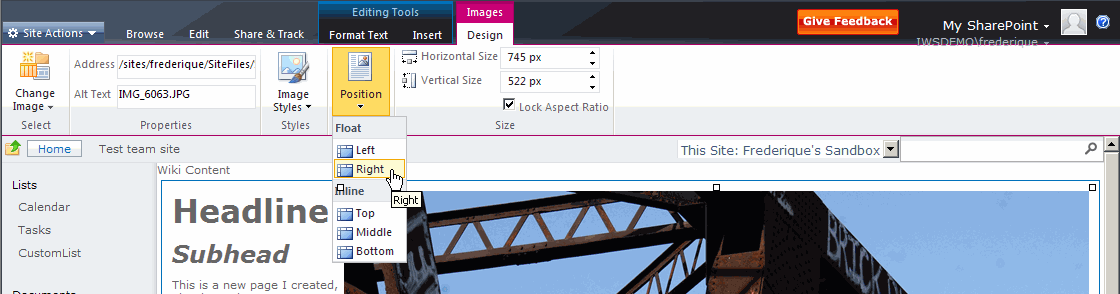
I can also position the image the same way as in Word: select left or right alignment, and drag and drop it to the right location.

SharePoint 2010 - Position the image via the ribbon

SharePoint 2010 - Position the image via the ribbon


Now I just have to remember that I do not see any Save buttons in the work-on-my-image mode, and that I need to click on the text or on Edit to be able to save it. Et voila! We have enabled the visitors to read & see what we want to convey to them right on the page.

It may not be perfect, at least not on the beta, but it is such a huge improvement of functionality that I need in my real life of intranet projects, that I am definitely happy.

NB : these screenshots were taken with the « secret» beta, because my colleagues are working on the installation of the public beta – installations always take some doing.

November 1, 2009

SharePoint 2010: Now we’re talking

Filed under: SharePoint — Tags: — frederique @ 00:57

I’m not a gadgety type of person and I don’t get excited about tools for their own sake. But I am excited about the new SharePoint 2010, because it looks like it is really going to make my work more effective, efficient and pleasant. It will allow me to create better information worker solutions for my clients, and of course help me in my own information work.

This assessment is not just based on Microsoft’s sales pitch, but also on some hands-on experience in a sandbox site. At Macaw, we’ve had the beta 1 version at our disposal for a few months, as members of the Partner Evidence Program, but it was still a “secret”. Fortunately, the veil has been lifted at the recent conference in Las Vegas and now we are allowed to talk about it. Unfortunately, we still have only that rather creaky beta 1 to play with, as we must wait until the end of November for the public beta.

I’ve worked for years with SharePoint 2003 and 2007, and these are quite useful, but they have limitations that drive me crazy sometimes. SharePoint 2010 undoubtedly has its own share of quirks and no system is perfect, but it does seem more mature. So what I am talking about here? I won’t try give a full list of what’s new and what’s hot here, but some examples are:

  • An interface that is more intuitive and less click-intensive. Web editing directly on the page, where you can enter text, lay it out and add pictures without counterintuitive detours. The Fluent User Interface a.ka. the ribbon offers you buttons for the actions that make sense in the context that you are looking at.
  • Tagging that helps you to find information relevant to your subject, as well as people who are experts in or at least interested in that subject.
  • Business Connectivity Services that integrate other systems into your working environment in SharePoint: not only can you see data from e.g. SAP but you can also add and edit data in such systems (if you have permission to do so of course)
  • Document management features including document sets, which allow you to manage not just single documents but also entire dossiers.
  • SharePoint Workspaces, in which you can take the content of your site offline, say, to keep working on a long flight.

This is going to keep me talking for a while…

« Newer Posts

Powered by WordPress