blog.frederique.harmsze.nl my world of work and user experiences

November 20, 2009

SharePoint 2010: Now we’re editing content

Filed under: SharePoint — Tags: , — frederique @ 02:19

The public beta of SharePoint 2010 has been released. See Mirjam’s blog. So now we are not only talking: we are getting somewhere. Three cheers et cetera, but let me get back from celebrating the news to pointing out specific functionality that is not just cool but really useful.

Content on the page
What we often want, not just in internet sites but also in intranet sites, is pages where we can publish content. We want to explain about our unique selling points, the benefits of green tea, the process of quality assurance or whatever topic is on our minds. And we want to do that explanation in text, with a readable layout. Accompanied by images that illustrate and clarify our point.

Content editor
In the “old” sharepoints we can do that, using things like Content Editor Web Parts and Image Web Parts. But you have to click deeply to get to your text. The Rich Text Editor functionality for layout is not that solid. And it is a real hassle to add a picture interlaced with the content: you go back and forth between your text and the picture library where you have to store your picture before you can use it on the page. MOSS 2007 was already better at this than SPS 2003, but still messy when you try to actually create interesting pages.

Editable pages

In the new SharePoint 2010, creating and editing content on a page is a lot easier, because all pages are implemented as wiki pages. So


  1. You create a new page, or click on Edit on a web part page like the homepage of the site.
  2. You put your cursor in the content field
  3. And you start typing.

SharePoint 2010 - Format

SharePoint 2010 - Format


Ribbon
The ribbon that we’ve already met in Office 2007 is now all over SharePoint 2010 as well. On every page, you get a ribbon that offers you the options that are relevant to:


  • you, given your permissions – no editing ribbons if you have only read permission;
  • the page you are on [at least, that is what I think and hope];
  • the element on the page you have selected – when I select the Announcements web part, I suddenly see the options to manage the announcement list and its items.
    [That means that you have to be careful where you put your cursor, or you will get lost in the ribbon jungle]

SharePoint 2010 Announcements web part ribbon

SharePoint 2010 Announcements web part ribbon


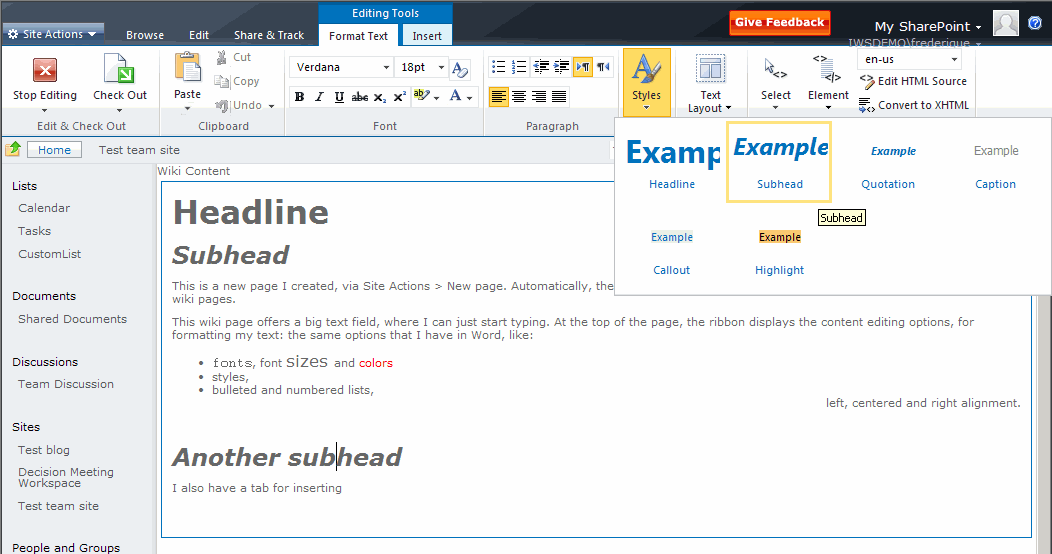
For a content element, the ribbon offers rich text functionality: fonts, bulleted lists, predefined styles etc. To see what it would do to your selected text, just hover over the style in the menu and you get a preview. Click to confirm, and the style has been applied.
[Personally, I am happy we still have a button Edit HTML source, so that I can save the layout when I get entangled in rich text options that try to think for themselves instead of listening to me.]

Inserting images
From the ribbon, I can insert an image, or anything else. Even a web part, which is not something that I’ve ever inserted into a Word document. But let me get back to the images.
I typically want to insert an image that I have not uploaded into the site yet, so select: the ribbon tab Insert > Image > From computer > Browse for the image and select the library where the image will be stored in the site.

SharePoint 2010 - Insert ribbon

SharePoint 2010 - Insert ribbon

SharePoint 2010 - Insert image

SharePoint 2010 - Insert image

The image lands on the page, I select it, and then I can manipulate it just like in Word. For example, by clicking the ‘make it smaller’ arrow, I can actually see the image shrink. [In my current sandbox I cannot enter a size manually, which cost me a lot of clicking to shrink my overlarge image. I hope I can just enter the size by typing the number in the public beta…


SharePoint 2010 - Resize the image via the ribbon

SharePoint 2010 - Resize the image via the ribbon


I can also position the image the same way as in Word: select left or right alignment, and drag and drop it to the right location.
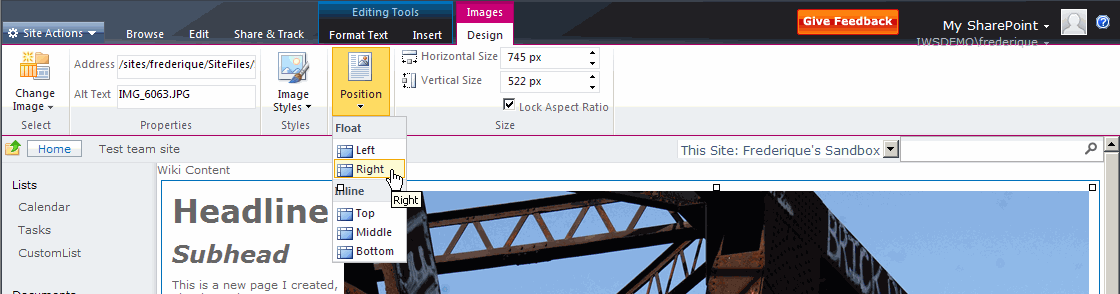
SharePoint 2010 - Position the image via the ribbon

SharePoint 2010 - Position the image via the ribbon


Now I just have to remember that I do not see any Save buttons in the work-on-my-image mode, and that I need to click on the text or on Edit to be able to save it. Et voila! We have enabled the visitors to read & see what we want to convey to them right on the page.

It may not be perfect, at least not on the beta, but it is such a huge improvement of functionality that I need in my real life of intranet projects, that I am definitely happy.

NB : these screenshots were taken with the « secret» beta, because my colleagues are working on the installation of the public beta – installations always take some doing.

November 1, 2009

SharePoint 2010: Now we’re talking

Filed under: SharePoint — Tags: — frederique @ 00:57

I’m not a gadgety type of person and I don’t get excited about tools for their own sake. But I am excited about the new SharePoint 2010, because it looks like it is really going to make my work more effective, efficient and pleasant. It will allow me to create better information worker solutions for my clients, and of course help me in my own information work.

This assessment is not just based on Microsoft’s sales pitch, but also on some hands-on experience in a sandbox site. At Macaw, we’ve had the beta 1 version at our disposal for a few months, as members of the Partner Evidence Program, but it was still a “secret”. Fortunately, the veil has been lifted at the recent conference in Las Vegas and now we are allowed to talk about it. Unfortunately, we still have only that rather creaky beta 1 to play with, as we must wait until the end of November for the public beta.

I’ve worked for years with SharePoint 2003 and 2007, and these are quite useful, but they have limitations that drive me crazy sometimes. SharePoint 2010 undoubtedly has its own share of quirks and no system is perfect, but it does seem more mature. So what I am talking about here? I won’t try give a full list of what’s new and what’s hot here, but some examples are:

  • An interface that is more intuitive and less click-intensive. Web editing directly on the page, where you can enter text, lay it out and add pictures without counterintuitive detours. The Fluent User Interface a.ka. the ribbon offers you buttons for the actions that make sense in the context that you are looking at.
  • Tagging that helps you to find information relevant to your subject, as well as people who are experts in or at least interested in that subject.
  • Business Connectivity Services that integrate other systems into your working environment in SharePoint: not only can you see data from e.g. SAP but you can also add and edit data in such systems (if you have permission to do so of course)
  • Document management features including document sets, which allow you to manage not just single documents but also entire dossiers.
  • SharePoint Workspaces, in which you can take the content of your site offline, say, to keep working on a long flight.

This is going to keep me talking for a while…

September 30, 2009

Cliquez Parcourir pour télécharger le ficher?

Filed under: New world of work,Usability — Tags: — frederique @ 23:31

Currently I am working for an American multinational. I am based at the headquarters for the international part of the business, which are in The Netherlands, and the other half of my team is in Chicago. Because we are one company, the intranet and collaboration environment that binds us together is in English. The idea being that we can all understand and use English, the lingua franca of the modern age and the obvious choice for a company with its main headquarters in the Chicago area.

However, are all my colleagues in that multinational quite as comfortable with English as all that? I am afraid not…

Language barrier
The language barrier may be underestimated by the people in America, as well as by the people in The Netherlands. The Dutch are not native speakers, but they can handle English just fine. After all, it is a small country and a “small language”, so everybody is at least familiar with English. But this is not the case for, for example, Russia and France.

In the project I am doing with the Russians, it is an ongoing struggle to try and understand each other. My contacts there have to write all the texts for the site we are creating and end-user materials in Russian, to allow the end-users to understand it. Fortunately SharePoint can deal with the Cyrillic script, even if I can’t….

Mixed terminology
It is easier for me to do projects with my colleagues based in Paris, because I do speak French. But I am only familiar with the terminology in English. I prefer to use English language settings on my computer, because I do not like to get my terminology translated. A browse button should be called a browse button and nothing else. But my French colleagues have computers that are French all over. Except for the intranet itself, because that is in English.

They see a button in the intranet that says ‘Upload’ and they have to know that this means ‘Télécharger’. And then their version of Windows takes over and offers them a button that says ‘Parcourir’ and I only know that that means ‘Browse’ because it appears in the location where I usually get the browse button. And none of the Help files and training materials are in French, so no help there.

So, the user experience that is straightforward when you are working in an English world becomes really messy when you are working on a French computer. It is not surprising that the employees in France hardly use the intranet at all and they don’t feel that it is meant for them.

What can we do?

  • Offer the most relevant content in different languages and make sure their content is not hidden behind anything English. That means personalization, as well as a lot of communication, to tell the people that it is worthwhile to look at the intranet and use the collaboration tools.
  • Configure the collaboration sites to be as local as needed: local time zone and time settings (not 10:00 AM 9/31/2009 Chicago time but 17:00 31/09/2009 Paris time), local language headings and explanatory texts.
  • Make sure the Quick Reference Cards and other ‘first aid’ user materials exist in all main languages of the company. It took me a moment to translate the Quick Reference Card to French, but it is not that much of an investment.
  • Preferably, the intranet and collaboration platform should also exist in different language versions, which follows the regional preferences of the computer. Most of all the buttons and action links that ordinary users see in their collaboration environment, such as Upload document, Edit document.

The last point requires a major overhaul of the system and is not something that we can do right now. But we are getting started with the other points. Now see if I can find a colleague who can start translating into Russian and Portuguese and what else do we need….

August 31, 2009

Limits to my New World of Work

Filed under: New world of work — frederique @ 21:14

At the moment, I am on a business trip in Chicago. As I also have to do some work with people in my original time zone in the Netherlands, I had planned to get some work done on SharePoint team sites and then join a Live Meeting session from my hotel room. Always on, always connected, right? But here I encountered some limits to my New World of Work

No network, no work
It all went swimmingly, until my secured connection broke. From that moment I was unable to get online. Well, I already knew I was addicted to team sites, but having no network at all was far worse! No SharePoint, no Outlook, no Live Meeting, no Instant Messaging, no Google… The main part of the work that I wanted to do was impossible without a network.

Phone as first aid
Fortunately I still had my phone. So I could send an SMS to the person with who I was to have that Live Meeting, to tell him I’d miss the meeting. And it is a smart phone, so I could still use one of my e-mail accounts and find some basics on the internet. I try to limit that use while I’m here though, as well as using the phone in the classical way to call people, because it costs me a fortune.

Offline as backup plan
And fortunately I had taken the relevant documents offline, so I still had the information I required on the spot. My means of synchronizing online and offline information are far from perfect: I just download and re-upload the relevant documents. But it works, until I get better tools.

Real life meeting versus Live Meeting
So, you may ask, if I am wallowing in the new world of work, why take a trip across the Atlantic at all and not just use Live Meeting? Well, because in any world of work, it good to actually meet people in real life from time to time. Not just to work, but to have a drink together. Drinks are not a collaboration feature in the new tools yet…

We want to have some brainstorm session with a larger group of people. It is a lot easier to do that effectively and efficiently if you can see each other in person. Video conferencing is getting better, but what we have at our disposal is nowhere near as good as a trip to Chicago to meet in real life.

July 31, 2009

My New World of Work

Filed under: New world of work — frederique @ 23:55

Microsoft, the local paper and everybody talks about the New World of Work. What do I think about it? Well, to me the New World of Work is not about the technology, but about flexibility. It means working when and where suits me best, so that I can be more effective and efficient. And of course make my life easier.

To be honest, I have never had a job where I had to be in an office from 9 to 5. In the nineties, I could get far with a key to the office building, a terminal and e-mail that allowed me to collaborate on an article with a co-author in New York. Today, I have better tools.

Wherever & whenever

I can work any time and any place where the internet is available. So I don’t have to commute to the office during rush hour, which makes my life easier. And I can check for e-mail before I leave and before I go to sleep, and help out my clients in Australia during their office hours. That makes me more effective and efficient.

  • Right now, I’m working from my couch at home after dinner, using my laptop and wireless internet.
  • At Macaw, we work in a SharePoint team sites. So I don’t need to be in the office to share documents or knowledge with my colleagues.  I really miss it when I collaborate with people who don’t have access to a team site.
  • Also, I have a secured connection that allows me to work within the company network of my client. So I can access their more heavily secured intranet.

Long distance

My current client is a multinational, so I do projects with teams in many countries. Most of them, I have never met in person. But we can still work together.

  • We share our desktop using Live Meeting. We can all see what the presenter is showing in a team site or a powerpoint presentation.
  • With a phone bridge, we can join a call and talk with the entire team. We have phones for that of course, but I can also call via Communicator on my laptop. A headset helps me to talk freely.
  • If I don’t want to interrupt a colleague with a phone call, I use Instant Messaging to chat. This is especially handy to talk with my team mates on the other side of the Atlantic: I can see if they are available in the Presence information displayed in the messenger tool.
  • The different time zones are a complication. But it helps that I can have a meeting from home, so that I don’t have to wait in the office for the Australians to wake up.

So yes, I do like this new world of work. And yes, I am working a lot more hours than the usual 40 hours a week. But I prefer spending that additional time to get results that I can be proud of.

June 30, 2009

How Outlook helped me survive the post-holiday mail stack

Filed under: New world of work — Tags: — frederique @ 23:23

I have just come back from a three week holiday. If I am not careful, I land in a huge stack of unread e-mail upon my return. Finding the urgent and important e-mail in that stack is difficult but very necessary. But I’ve set up Outlook to help me deal with it, by structuring the pile more than in previous years. It’s not high tech, but it’s effective. I have used the following:

  • Out-of-office assistant: Of course I try to warn my contacts in advance that I will be out of office, but it is useful to have an automatic reply which tells the sender when I’m back and whom to contact during my absence. In Outlook 2007, I could set the end date and distinguish between mailers from within my organization and mailers from the outside. In my other workplace, with Outlook 2003, I had to switch it off manually after I returned, but it did warn me. (Tools > Out of Office Assistant).
  • Rules to sort mail: I used rules to sort mail into different folders. Especially recurring mail that usually is not that urgent. For example, all mail with the word ‘newletter’ in the subject goes into the newsletter folder. This works already in Outlook 2003 (Tools > Rules and Alerts)
  • Rules to forward urgent mail: For projects with deadlines that interfered with my holidays (actually, it’s the other way around), I set up a rule to forward mail to colleagues, so that they could deal with it immediately. That concerned mail with specific keywords in the subject or from particular senders. This works also in Outlook 2003 (Tools > Rules and Alerts)
  • Archive: I cleaned up the Inboxes beforehand, so that they would not overflow during my absence.

And I have switched off many automatic notifications, that alert me of changes in project sites. Or at least changed them from immediate or daily notifications to weekly notifications. Of course I don’t need to be notified immediately if anything happens in an interesting project site or blog while I am watching the puffins on the cliffs of Orkney…

Note to self: next year, take the same measures, because they really help.

May 31, 2009

Addicted to collaboration sites…

Filed under: New world of work — Tags: , — frederique @ 22:26

In my job, I use SharePoint project sites – or more generally team sites – to share documents and information with my team mates and to keep track of projects. I’ve just discovered how much this way of work has become a part of me, when we were planning our holiday. Help, I’m addicted!

We are going island hopping in Scotland in the busy season, so we need to book several ferries and bed & breakfasts. And for that we needed some idea of what we wanted to see and how much time we would want to spend on each island.
My travel companions live in different locations, so we discuss our plans whenever we meet in person, by phone and by e-mail. However, I soon lost track of our ideas and decisions and of the status of the bookings that different people were taking care of. So I found myself itching for a project site.

Unfortunately, we don’t have Windows SharePoint Services (WSS) running on our home computers. But fortunately, there are other tools available: We used Google Docs to share our plans.
It doesn’t work as well as my usual sharepoint project sites. For example, I have not found a way to get a notification whenever somebody edits the document. And it wasn’t a coherent environment where we could also share announcements, tasks and contact information in an easy way as well. But hey, it worked and at least I could get my collaboration fix …

April 30, 2009

Article on dos and don’ts faceted search

Filed under: Usability — Tags: , — frederique @ 23:51

I’ve just read this interesting article about faceted search: http://www.uie.com/articles/faceted_search. Faceted search or guided navigation allows you to search by different types of metadata (called facets). You can drill down via these dimensions: narrow down your search result by selecting the value you prefer in the choice lists associated with these facets. Or search for related items, which share facets.

Personally, I use the faceted search feature in an online bookstore I visit: I browse the collection by selecting a category, a genre, a price range, a language, or whichever suits my needs at that moment.

Stephanie Lemieux lists in her article a set of dos and don’ts that have emerged as best practices for designing faceted search.

March 31, 2009

Less is more

Filed under: Usability — Tags: , — admin @ 23:17

Recently I have read several news articles about websites that are too large.

Several Dutch IT magazines (e.g. Webwereld) boasted headlines that the Dutch government should stop trying to create large portals, because citizens get lost in them and swamp the government agencies with even more phone calls. The (Dutch)  press release about the research they quote, performed by Willem Pieterson at the Center for e-Government Studies, presents somewhat different conclusions. He studied the service channels that citizens chose; he found that citizens do not make that choice rationally. So government sites and the communication campaigns to promote them need to take the emotions and habits of the citizens into account

Gerry McGovern tells in this New Thinking article that Microsoft weeded a lot of irrelevant content from their site, because it was smothering the quality content that people are actually looking for. “It is estimated that the Microsoft.com website has about 10 million pages and that some 3 million of them have never been visited.” So they determined what were the top tasks that the users were trying to perform and made those prominent.

I don’t think that you can blindly equal Large = Bad. However, the larger the site, the larger the strain on the information architecture and the search functionality, and the harder it is for users to find what they need amongst all the content that they don’t need.
The main thing is to know what most users aim to do on the site and make sure that you offer these features and this information prominently in the navigation and in the search result. Content that is only relevant to few users, in few situations can be pushed into the “basement” of the site; allow users with unusual questions to explicitly rummage in that basement.

So less is more. But user-centered design is even more, especially in combination with user-centered content management.

March 26, 2009

The best intranets of 2009 according to the Nielsen Norman Group

Filed under: Usability — Tags: — admin @ 22:09

Recently I’ve been flipping through the Nielsen Norman Group’s Intranet Design Annual 2009 – The Year’s 10 Best Intranets (see Nielsen’s alertbox about it). A couple of things that caught my attention 

  1. SharePoint (especially MOSS) scores well. One of the intranets even looks really standard MOSS, with hardly any additional styling.
    “fully half of the winning intranets used SharePoint, especially the recent MOSS platform (Microsoft Office SharePoint Server 2007).[…] SharePoint use has grown dramatically in recent years. This is particularly impressive given that, from 2003–2006, the winning intranets didn’t use earlier versions of SharePoint at all.”
    That is interesting news, given the fact that I use SharePoint for intranets on a daily basis and I focus on usability a lot.
  2. The concept of intranet has matured quite nicely.
    • An intranet not is not just the phone list online (the equivalent of the leaflet online for websites) that we publish because it is fun. Intranets have all kinds of functionality.
    • The winning companies have serious intranet teams, that repport to high level management, because they realise that the intranet istrategically important.
      “This year does show dramatically increased executive visibility for the intranet in many of the winning organizations. This executive involvement typically results from companies viewing the intranet as a collaboration tool and appreciating the increased business efficiency that a good intranet brings”.
    • The development teams take usability into account. They use various methods, like paper prototyping.
    • Personalisation is getting more  sophisticated. The most basic form is personalised news, but we also see personalised work-relatted content and applications.
      “If intranets show everyone everything, information overload ensues and people either ignore the news area or squander their time reading irrelevant stories”.
  3. This year, every winning intranet has some social networking functionality, like (CEO) blogs, forums, wikis, video and user profiles. Not only because it is cool, but because it can help them share knowledge.
    “Social networking and the intranet: A marriage made in e-heaven”
    “Although likely inspired by the open Internet’s “Web 2.0″ sites, these features often have a much stronger business model within the enterprise, simply because they’re more useful and less subject to noise and information pollution by bozos”.
  4. Any self respecting intranet supports collaboration. Many of the winners use SharePoint functionality for that purpose.
    “According to [spokesperson], a key aim of the intranet is collaboration. “It [the site] is a tool that has been developed to network people within the company and better equip them to do their jobs, manage projects, and deliver the best possible service to our clients.”
« Newer PostsOlder Posts »

Powered by WordPress